

Import a website URL
The Website URL tab imports a live page straight from the web. Paste a link, set a viewport, and the server loads the site in headless Chrome and converts what it renders.
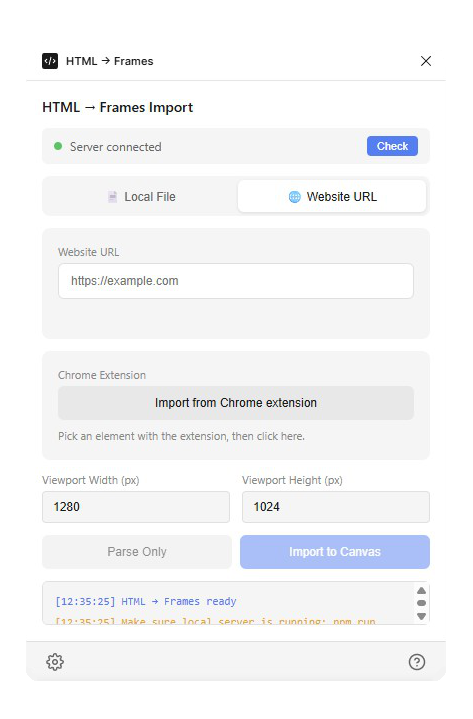
Importing from a URL
- Open the Website URL tab.
- Paste a full address — the field validates live (✓ Valid URL), and only
http/httpsaddresses are accepted. - Set the viewport and click Import to Canvas (or press Enter in the URL field).
URL imports do noticeably more waiting than file imports, on purpose:
- The page is loaded until the network goes idle and web fonts are ready.
- The whole page is auto-scrolled top to bottom so lazy-loaded images and scroll-reveal sections actually appear, then scrolled back before capture.
- Scroll-reveal animations are tricked into their "visible" state and CSS animations are fast-forwarded to their final frame, so nothing is captured mid-fade.
- An extra settling delay (about 6 seconds) lets late scripts finish.
A heavy page can take a while — watch the log; every stage reports in.
Big pages
A long page can produce thousands of nodes. Run Parse Only first to see the node count before committing it to your canvas.
Import from the Chrome extension
Some pages can't be reached by a headless browser: dashboards behind a login, apps with bot protection, or a page in a state you clicked it into. For those, the HTML to Frames Capture extension captures the element straight from your browser session (install instructions).
- Click the extension's toolbar icon on the page you want.
- Hover to highlight elements — the outline shows what will be captured. Click to capture it, or press Esc to cancel.
- In the plugin's Website URL tab, click Import from Chrome extension. The status line shows the capture's source URL, size, and how many seconds old it is.
Because the capture happens in your real browser, you get the page exactly as you see it: logged in, animations finished, real fonts, lazy content already loaded.
Next
- What gets converted — what arrives on the canvas.
- Settings — Auto Layout, vector icons, and image quality.