

Settings
Open the settings drawer with the gear icon in the plugin's footer. Settings persist between sessions.
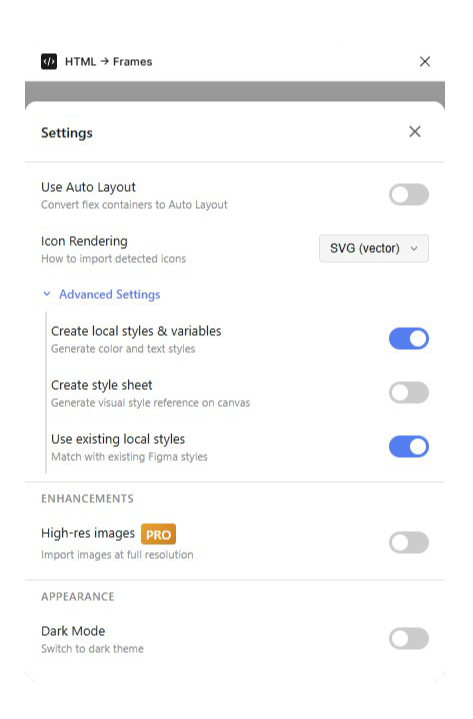
Import Options
| Setting | Default | What it does |
|---|---|---|
Use Auto Layout | Off | Converts flex containers to Auto Layout frames — see the mapping |
Icon Rendering | SVG (vector) | How detected icons are imported: as true vectors, or As image (rasterized) |
Auto Layout is off by default because plain measured positioning is the high-fidelity mode: every layer sits exactly where the browser drew it. Turn Auto Layout on when you plan to keep editing the layout — resizing frames, adding items — and pixel-perfect placement matters less than responsive behavior. The same toggle is mirrored on the main screen as Try Auto Layout (flex containers).
Advanced Settings
| Setting | Default | What it does |
|---|---|---|
Create local styles & variables | On | Creates Figma paint styles for every fill, border, and shadow color in the import, named by color (Border - …, Shadow - …), and binds them to the layers |
Create style sheet | Off | Builds a separate Style Sheet frame beside the import: a hue-sorted color grid with hex labels, detected typography bucketed into H1–H5 / body / caption specimens, and the page's icons and images |
Use existing local styles | On | Reuses your document's existing paint styles when a color matches instead of creating duplicates — the log reports how many were created vs. reused |
Together the defaults mean a fresh file gets a tidy set of named color styles, and a file with an established library keeps using its own. The style sheet is great for auditing an existing product's design language — one import gives you its palette and type scale as a reference sheet.
Enhancements
| Setting | Default | What it does |
|---|---|---|
High-res images PRO | Off | Off, images are compressed for speed and file size. On, images import at their original full resolution |
Appearance
| Setting | Default | What it does |
|---|---|---|
Dark Mode | Off | Switches the plugin UI to a dark theme — the import itself is unaffected |