

Import a local file
The Local File tab imports an .html or .htm file from your disk — hand-written HTML, an AI-generated prototype, a saved page, or a build artifact from your dev project.
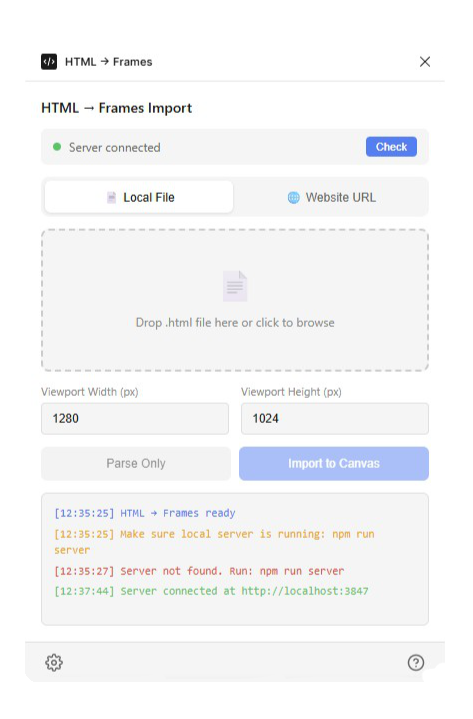
Importing
- Open the Local File tab.
- Drop your file on the dropzone, or click it to browse. Only
.htmland.htmfiles are accepted — anything else logs Please select an .html file. - Set the viewport (default 1280 × 1024) — width decides which responsive layout you get.
- Click Import to Canvas, or Parse Only for a dry run that reports node counts without touching the canvas.
The file is read locally and rendered by the local server as a real page — scripts run, CSS applies, web-font links load, and animations are fast-forwarded to their finished state before anything is measured.
What the file can reference
The page is rendered in a real browser, so it can pull in whatever a normal page can:
- CDN stylesheets and fonts — Tailwind, Google Fonts, and icon fonts all load as usual (the render waits for fonts before measuring).
- Remote images — fetched during the render and embedded in the import.
- Inline everything — a fully self-contained file works too, and is the most reproducible input.
Relative references to files next to the HTML file (a local ./styles.css or ./img/…) can't resolve, since the server renders the HTML text it is sent, not your folder. Inline those assets or point at hosted copies — or serve the folder and use URL import instead.
HTML from an AI tool?
Generated single-file prototypes — one HTML file with Tailwind classes or a <style> block — are the ideal input: self-contained, fast to render, and they convert with very high fidelity.
Next
What gets converted covers exactly what arrives on your canvas and how it's structured.